Main window
The main window is divided into three riders: barcode, QR code and archive
Barcode
Please select the type of barcode first before entering the code. Some barcodes only allow numbers. Others also letters. Depending on the selected barcode type, Barcode X checks whether the number of characters entered corresponds to the specifications. For example, exactly 12 or 13 characters are permitted at EAN13.
A preview image is displayed immediately after entering the code, so that you can check your entries directly.
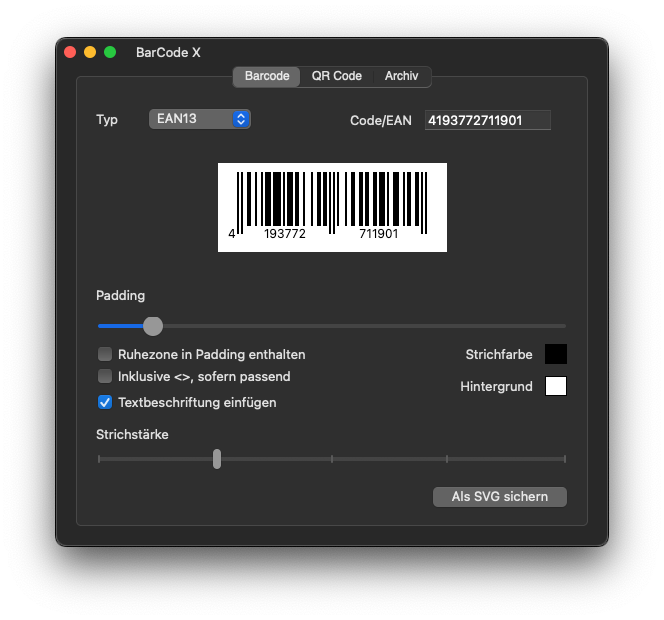
Some cod types specify a certain character length, e.g. EAN8, EAN13, UPC-A and UPC-E. Barcode X checks the number of characters entered and inserts an error indicator if necessary.
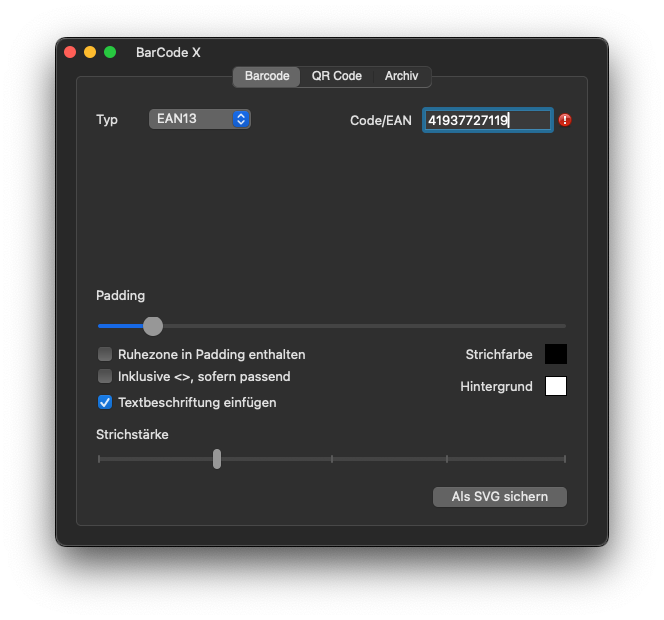
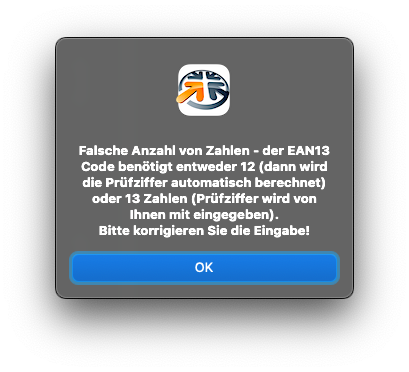
By clicking on the red exclamation mark, an error message is shown:
With the controls and switches below the preview image, you can make important settings.
- Padding - The slider influences the edge distance
- Quiet zone contained in padding - determines whether the necessary calm zone (white surface around the barcode) is contained or not
- Including <>, if suitable - supplemented with EAN8 or EAN13 if necessary. Brackets at the beginning or end.
- Insert text lettering - indicates the entered code below the line code
- line color - defines the color of the lines, preset is black
- background - defines the color of the background, preset is preset white
- line strength - The slider defines the strength of the strokes. The effects of your changes are immediately visible
With the help of the "Secure as SVG" button, the barcode is saved as a vector graphics file in the SVG format at a place of your choice. If you want to output the barcode in a different format, you will find the functions in the "File" menu under "Secure as SVG / PDF / PNG / JPG".
QR code
Please enter the text for the QR code in the text field.
With the switches in the area of error correction, you can determine how strongly the built -in error correction should be. The error correction ensures that the content can still be read out reliably even with a partially damaged QR code.
- Color - defines the color of the QR code, preset is black
- Sand size - influences the edge distance around the QR code
With the help of the "Secure as SVG" button, the QR code is saved as a vector graphics file in the SVG format at a place of your choice. If you want to output the QR code in a different format, you will find the functions in the "File" menu under "Secure as SVG / PDF / PNG / JPG".
archive
In the Archive tab you can see all barcodes/QR codes stored in the database. As soon as you secure a barcode / QR code, it will be included in the database with his settings.
You can search for a specific barcode/QR code using the search field and/or the annual/month. In the search field you can look for the name of the entry (either code input or the first 30 characters of the QR text) or the type of the code (barcode or QR code).
If the marking is active with a period of time, the search is restricted to the visible year/month.
XXX
The selected barcode / QR code is opened and displayed by a double click.
If you want to remove an entry, click on the line with the right mouse button and select the "Delete" entry in the open context menu. According to a safety query, the entry is then deleted from the database.
If you want to remove all entries in the archive, you will find the "Delete archive" function in the "File" menu.